
Site Alerts on Older Sites
Last updated
This guide is for sites whose Site Alert form has Severity and Placement fields. If your form has an Alert Icon field instead, see Site Alerts.
A site alert is an urgent notice, such as a road closure or a weather closing. It shows in a colored band at the top of your website, or as a pop-up window.
Add a Site Alert
Go to Content → Add content → Site Alert, then fill in:
- Title – the alert’s message, such as “Main Street Closed for Repairs”.
- Severity – sets the alert’s color:
- Information – for minor inconveniences.
- Warning – to get attention without causing alarm.
- Danger – for serious or life-threatening events, such as a hurricane warning.
- Placement – Header shows the alert in a band at the top of every page. Pop-up opens it in a window that visitors must close before they continue.
- Override Link (optional) – a page on your site, or another website, that opens when visitors click the alert. Leave it empty to open the alert’s own page.
- Body – the full details: what’s happening, where, until when, and what visitors should do.
- Display Pages (optional) – show the alert only on the pages you choose. Start typing a page title and pick it from the list, or enter <front> for the home page. Select Add another page for more. Leave it empty to show the alert on every page.
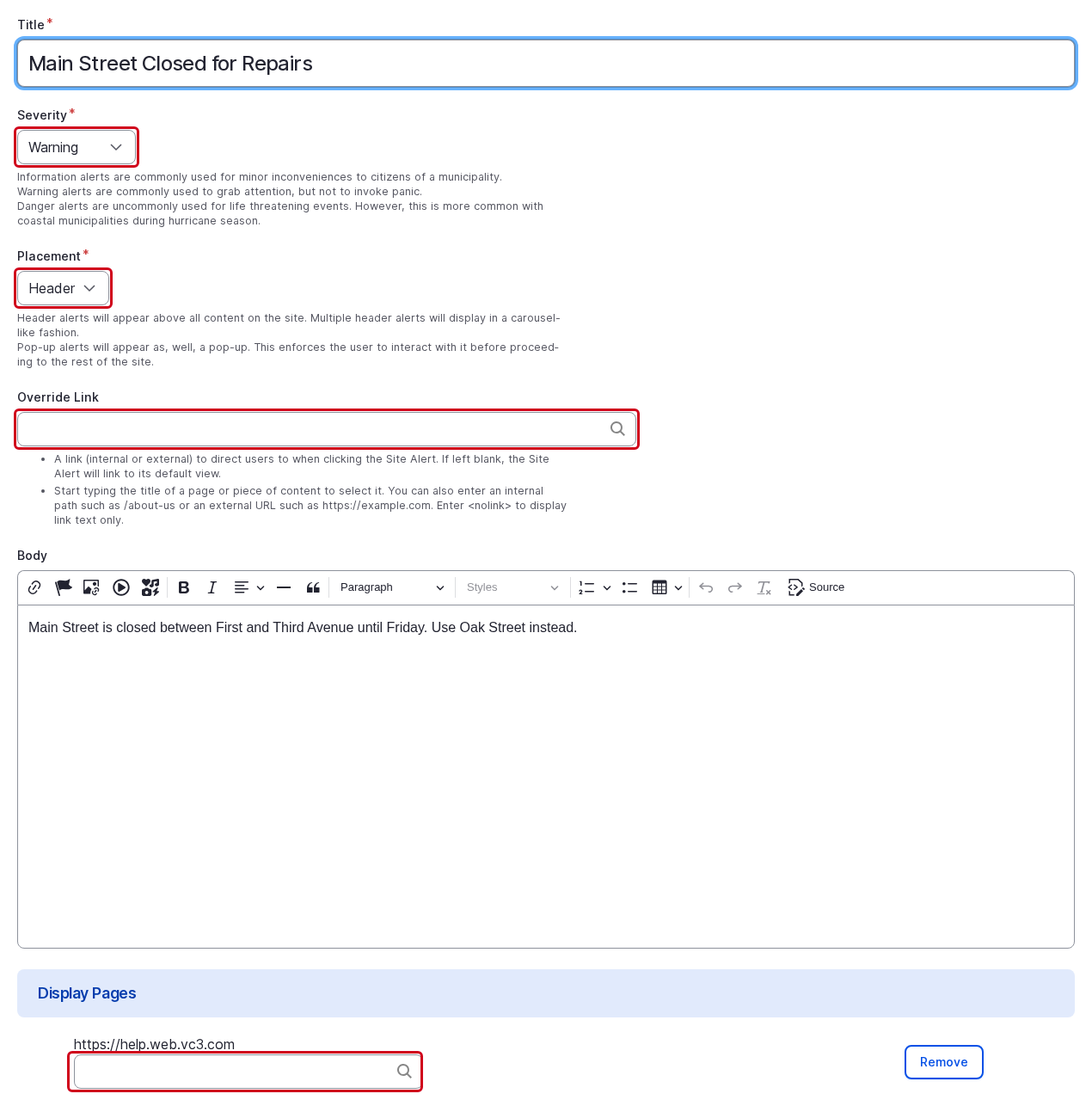
Leave Published turned on at the top of the form, then select Save.
What Visitors See
A Header alert shows in a band at the top of the page, in its Severity’s color. Visitors can collapse the band with the arrow at its right. If several header alerts are published, they show as a slideshow, newest first, up to five at a time.

A Pop-up alert opens in a window over the page, with a Close button and a Don’t show this alert again option.
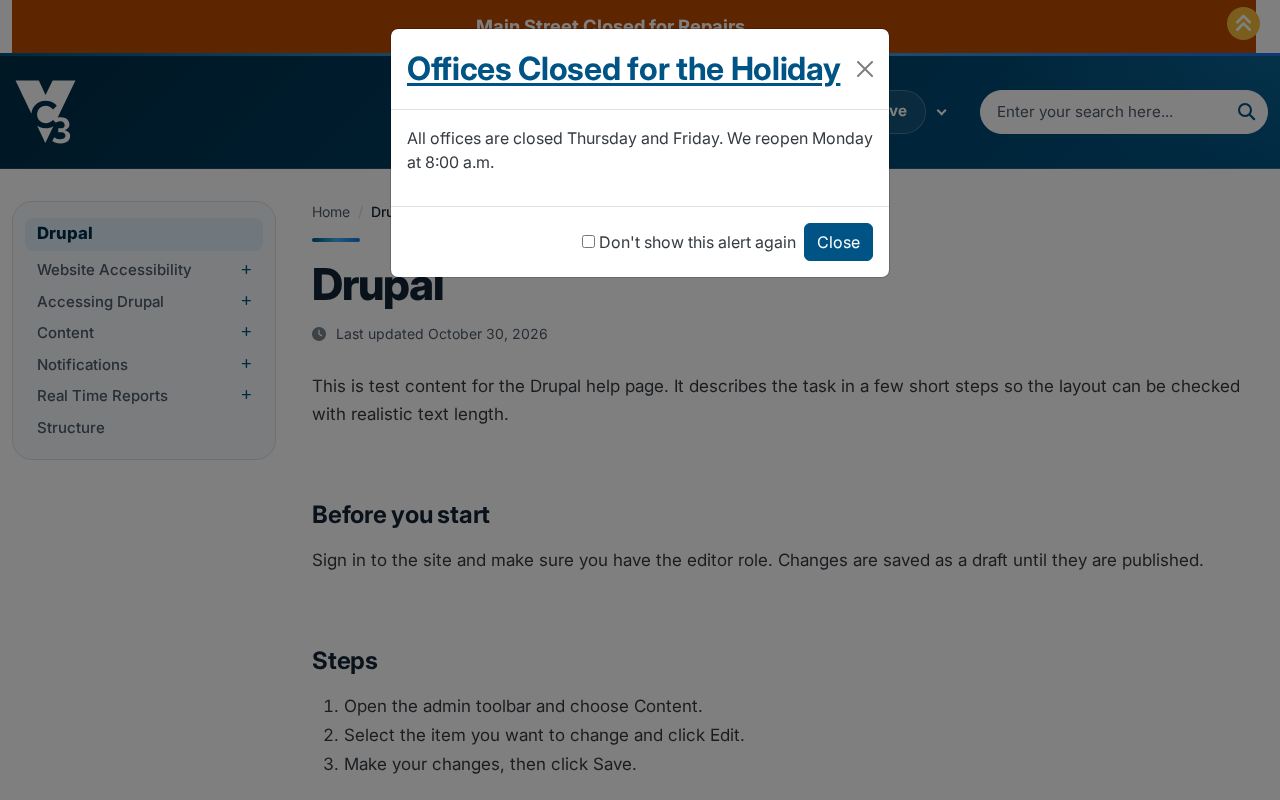
Colors and styles depend on your site.
End an Alert Automatically
To take an alert down at a set time, open Scheduling options in the sidebar and set an Unpublish on date and time. To post it later, set Publish on instead. See Scheduled Content.
Edit or Remove an Alert
Find the alert on the Content page (filter by Content type: Site Alert) and select Edit. When the alert is over, turn off Published and save. To remove it for good, select the arrow beside Edit, then Delete.
Tips
- Use Danger only for real emergencies, so visitors take it seriously when they see it.
- Use pop-ups sparingly. They interrupt every visitor, so save them for the most urgent notices.
- Keep the title short and specific, and put the details in the Body.
- Remove alerts as soon as they’re over.
Still need help?
Our support team can help with anything these guides don’t cover.